
How can we help?
Find answers about recognizing ingredients, creating meals, Cook Mode, Favorites, settings, memberships, purchases, privacy, and your account.
Getting started
New to MakeGood? See how to cook with what you have, from your first ingredient list to dinner.
What does MakeGood do?
MakeGood begins with the food already in your kitchen. Photograph your fridge, freezer, pantry, or wherever you keep food, review what we recognize, and see dinner options created around what you have.
How should I photograph my kitchen?
Use good light, keep ingredients visible, and take more than one photo when a shelf, drawer, freezer, or pantry can’t fit clearly in one image. You don’t need to style or organize anything first. Just give us the clearest view you can.
Can I add ingredients without taking a photo?
Yes. Use the manual ingredient field on the main kitchen screen to type in anything you already know is there. You can also add ingredients from the review screen after MakeGood finishes recognizing a photo.
This is useful when your camera isn’t available, when something is hard to photograph, or when you only need to add one or two ingredients.
What if my camera doesn’t work?
You can still use MakeGood by entering ingredients manually. First, check that MakeGood has permission to use your camera in your device settings. You may also be able to choose an existing photo from your library.
If the camera still isn’t working, add your ingredients in the manual-entry field on the main kitchen screen or from the ingredient review screen.
How do I move back through the app?
Tap the MakeGood mark in the upper-left corner to move back toward the main kitchen screen. You can use it whenever you want to leave the current step and return to an earlier part of the experience.
Reviewing ingredients
Before MakeGood creates meals, you’ll have a chance to review what we found. This is where you can skip anything that isn’t there, refine an ingredient, add something we missed, and confirm anything we aren’t fully sure about.
What happens after I take a photo?
MakeGood reviews the image and builds an ingredient list. Check that list before continuing. Remove or skip anything that isn’t there, add anything we missed, and review any ingredient MakeGood places in the uncertain list.
How do tap and long-press work?
Tap a recognized ingredient to skip it so it won’t be used when MakeGood creates meals. Press and hold an ingredient to edit or refine it.
In the uncertain-ingredient list, press and hold an item to refine it before confirming it.
Why are some ingredients shown separately?
When MakeGood sees something but isn’t confident enough to include it automatically, that item appears in a separate review list. Those ingredients won’t be used to create meals unless you confirm them.
This keeps an uncertain recognition from changing your results without your approval.
How do I confirm an uncertain ingredient?
Review the item and refine it when needed. Once you confirm it, the ingredient joins your active list and can be used when MakeGood creates meals. If it isn’t correct, dismiss it instead.
What if MakeGood misses something?
Use the manual ingredient field on the review screen to add it before creating meals. You don’t need to retake the entire photograph just to add one missing item.
What if MakeGood recognizes something that isn’t there?
Tap the ingredient to skip it before continuing. Skipped items won’t be used when MakeGood creates your meals.
Meals and results
How are meals created?
MakeGood uses the ingredients you confirm, along with your preferences, measurement setting, and serving needs, to create practical dinner options.
Can I find more meals?
Yes. The first set is only the beginning. You can ask MakeGood for more options from the same confirmed ingredient list.
What if I want a completely new set of meals?
Go back to your ingredient list, modify it or add something new, and then choose to see what you can make. Even a small change can open up a different set of possibilities.
Does MakeGood use every ingredient I confirm?
Not necessarily. Each meal is built from your available ingredients, but an individual recipe may use only some of them. Different meal options may use different parts of your kitchen.
Will MakeGood suggest ingredients I don’t have?
MakeGood is designed to create meals from the ingredients you confirm. Recipes may also rely on ordinary cooking basics such as water, salt, pepper, or cooking oil, so review the ingredient list before you begin.
Why did I get different meals from the same ingredients?
The same kitchen can hold more than one good answer. Additional results may explore different flavors, cooking methods, time commitments, or ways of combining the ingredients you already confirmed.
Cook Mode
Cook Mode helps carry you from choosing a meal to getting it on the table. Use List Mode to see the full recipe or Guided Mode to move through it one step at a time.
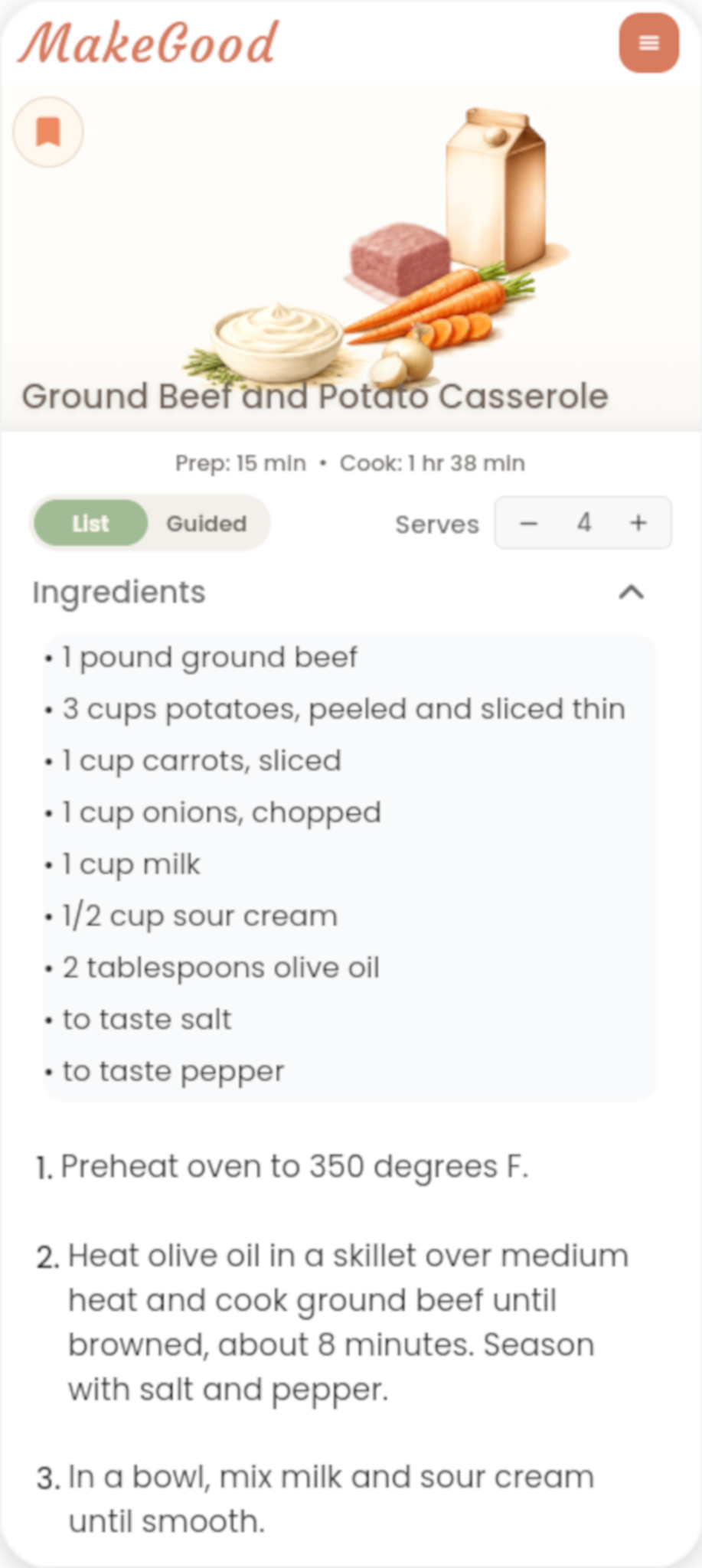
What is the difference between Guided Mode and List Mode?
Guided Mode takes you through the recipe one step at a time. List Mode shows the complete recipe so you can see everything at once and move through it at your own pace.
How do the built-in timers work?
When a cooking step includes a timer, start it directly from that step. MakeGood tracks the remaining time and alerts you when it finishes according to your sound and vibration settings.
Can I change the number of servings?
Yes. Adjust the serving count from the recipe screen, and MakeGood updates the ingredient quantities for that meal.
Will my screen stay awake while I cook?
MakeGood is designed to keep the recipe available while Cook Mode is active, so you don’t have to keep unlocking your device with food on your hands.
Favorites
How do I save a meal?
Tap the save control on a meal you want to keep. It will be added to Favorites so you can return to it later.
Where do I find saved meals?
Open Favorites from MakeGood to see the meals you’ve saved. Select any favorite to review it or open Cook Mode again.
Can I remove a meal from Favorites?
Yes. Open the saved meal and tap the save control again to remove it from Favorites.
How many meals can I save?
You can keep saving the meals worth making again. Your Favorites collection is there to hold the recipes you want close at hand.
Do I keep saved meals without an active membership?
Yes. Meals you saved during your free kitchen experience or while your membership was active remain available. You can open them and use Cook Mode again.
Settings and accessibility
How do I change measurement units?
Open Settings and choose your preferred measurement system. MakeGood can present recipe quantities using U.S. or metric measurements.
How do I make the text larger?
Open Settings and choose the text size that feels most comfortable. MakeGood includes multiple text-size options to make recipes and Cook Mode easier to read.
How do I turn timer sounds or vibration on and off?
Open Settings to manage timer sound and vibration separately. You can leave either one on, use both, or turn both off.
How do I manage camera or photo permissions?
Open your device settings, find MakeGood, and review the permissions for Camera and Photos. The exact labels may differ slightly between iPhone and Android.
Membership and the complete free experience
Is MakeGood free to download?
Yes. MakeGood can be downloaded free, and every user receives one complete MakeGood kitchen experience with full functionality.
What is included in the complete free experience?
It includes recognizing ingredients, reviewing what we found, creating meal options, finding additional meals, saving recipes, and cooking with guided steps and timers.
What happens after the free experience?
After that complete experience, an annual membership is required to begin new kitchen-recognition and meal-generation sessions.
Your saved recipes remain available, and you can continue opening and cooking them.
How much does membership cost?
Membership is currently $19.99 per year, subject to the price shown in the Apple App Store or Google Play.
Is there a timed free trial?
No. There is no timed trial and no trial that converts automatically. The free experience is a complete kitchen run, not a countdown.
Purchases
How do I restore an Apple purchase?
Open MakeGood on the Apple device using the Apple account that made the purchase, go to the membership screen, and choose Restore Purchases.
How do I restore a Google Play purchase?
Open MakeGood on the Android device using the Google account that made the purchase, go to the membership screen, and choose Restore Purchases.
What if Restore Purchases doesn’t work?
Confirm that the device is signed in with the same Apple or Google account used for the original purchase, then try again. If the purchase still isn’t restored, contact us and include your platform, device, and app version.
Privacy, terms, and your account
These pages explain how MakeGood handles your information, the terms that govern use of the app, and how to permanently delete your account.
Contact MakeGood support
Send us a message at support@makegood.recipes.
Still need help?
Text MakeGood
(771) 220-2921By contacting us via SMS with your mobile number, you consent to receive customer care text messages from SparkOven LLC. Msg&Data rates may apply. Message frequency varies. Text HELP for help. Reply "STOP" at any time to opt out.
SMS Terms & Conditions